

Your AI agent should live where your work lives
Why we built Papr Work as a local AI agent for Mac, Windows and Linux: your files, logins, keys and schedules stay on your machine.
Papr
A local AI agent runs on your own computer, next to the files, browser logins and keys it needs to do real work. Most AI agents today live in someone else's data center. That works well for answering questions, but it breaks down the moment you ask the agent to touch your actual work.
The problem with an agent that lives in the cloud
The invoices sit in a Downloads folder. You already signed in to the CRM in your browser with a passkey. The API keys for your tools live in your password manager, and the weekly report has to go out on Monday at nine.
A cloud agent can reach none of that on its own. So teams build work-arounds: they upload folders to a shared drive, paste API keys into a web form, or hand a bot their password and hope the login survives two-factor checks. Each step moves private data to a place it never had to go.
Developers solved this years ago: their tools run on their own laptop, next to the code, and only the results go to a server. We wanted the same shape for people who never use a terminal.
What we built
Papr Work is a desktop app for Mac, Windows and Linux with an agent named Pen inside it. You describe what you need, and Pen builds a small app that does the work on your computer, on your schedule.
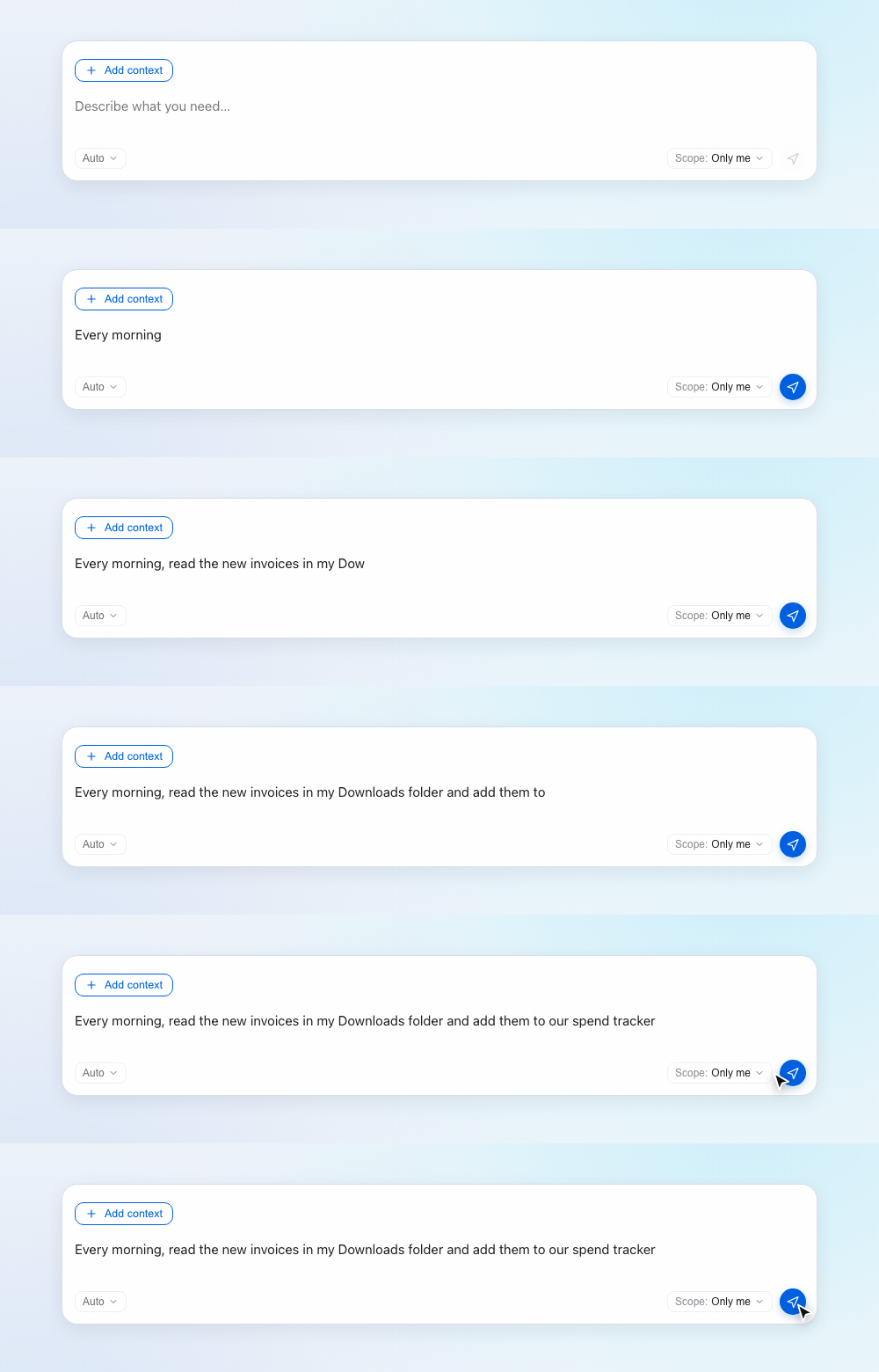
The request above reads files from a local folder every morning. A cloud agent would need you to move those files first. Pen reads them where they are.
Decision one: the agent runs next to your files and logins
We put the agent on your computer because that is where your access already is. Your folders, your browser sessions and your keys are all on the machine you use every day, so the agent can use them without a new copy in the cloud.
Browser sessions show this best. When a task needs a site you log in to, Papr Work shows a real Chrome window on your desktop. You sign in there with your passkey, Touch ID or Google account, the same way you always do. Your keys stay in your computer's keychain, and Papr Work hands each one to a task only when that task asks for it.
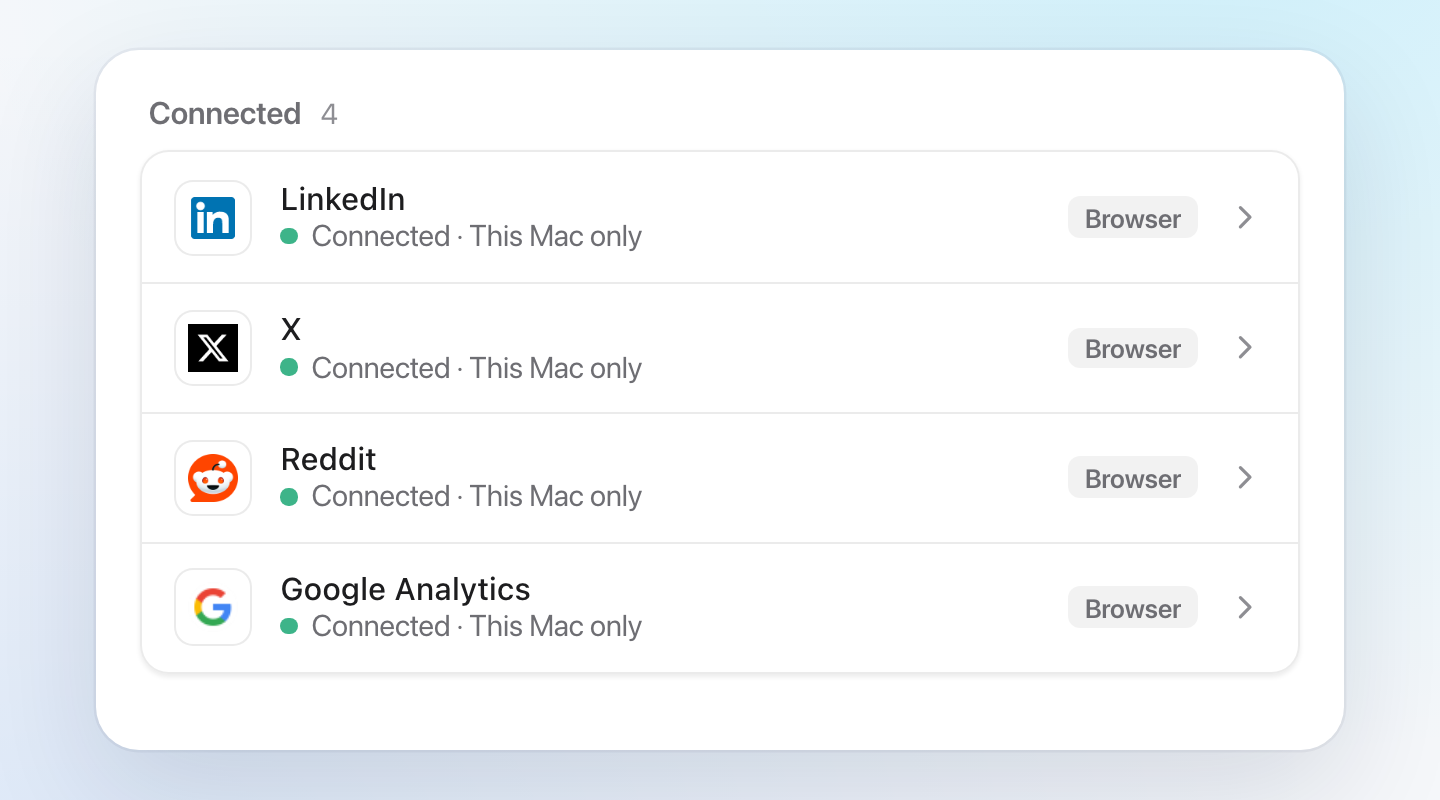
The trade-off is that some work needs your computer to be on: a task that reads your Downloads folder cannot run while your laptop sleeps. We say so in the product instead of hiding it, and Papr Work marks each task that needs your computer: Chrome, apps on your Mac, a local model or files in your home folder.
Decision two: only your computer can reach the agent
An agent that can read your files is also something an attacker would like to reach. So Papr Work runs its local server on your computer's own loopback address, and nothing else on your network can connect to it. It also does not answer ordinary websites, so a page you open in a browser cannot read from your agent behind your back.
We made this choice even though it closes some doors. A teammate on the same office Wi-Fi cannot point a tool at your copy of Papr Work. When you want to share, you publish an app, and the shared version runs in the cloud with its own access rules.
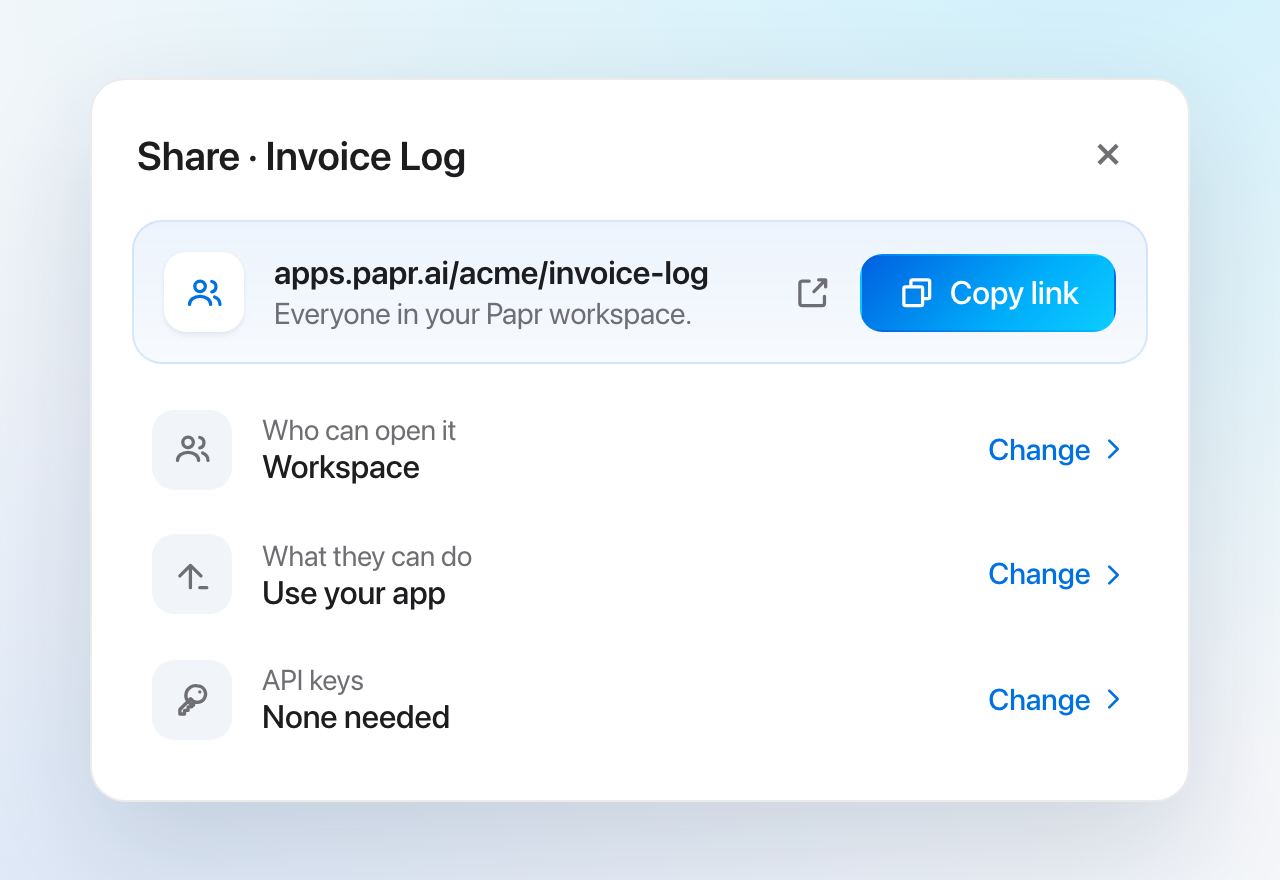
The Share sheet is the only door out. It asks who can open the app, from only you to your whole workspace to anyone in Community. Each answer applies to the published copy, never to the agent on your desk.
Decision three: you choose the model, including a local one
Running the agent locally does not mean every word stays on your machine. By default, Pen thinks with a cloud model from Anthropic, OpenAI or Google. Those models are still the strongest at planning and writing code. So your prompt and the context Pen needs go to the model provider you use.
When you want the whole loop on your machine, the model picker has an Add local option. It lists open models such as Qwen and Google's Gemma that run through Ollama, sized for anything from an 8 GB laptop to a 32 GB workstation. Papr Work reads how much memory your computer has, marks one model as recommended and downloads it the first time you use it. After that, the local model works offline.
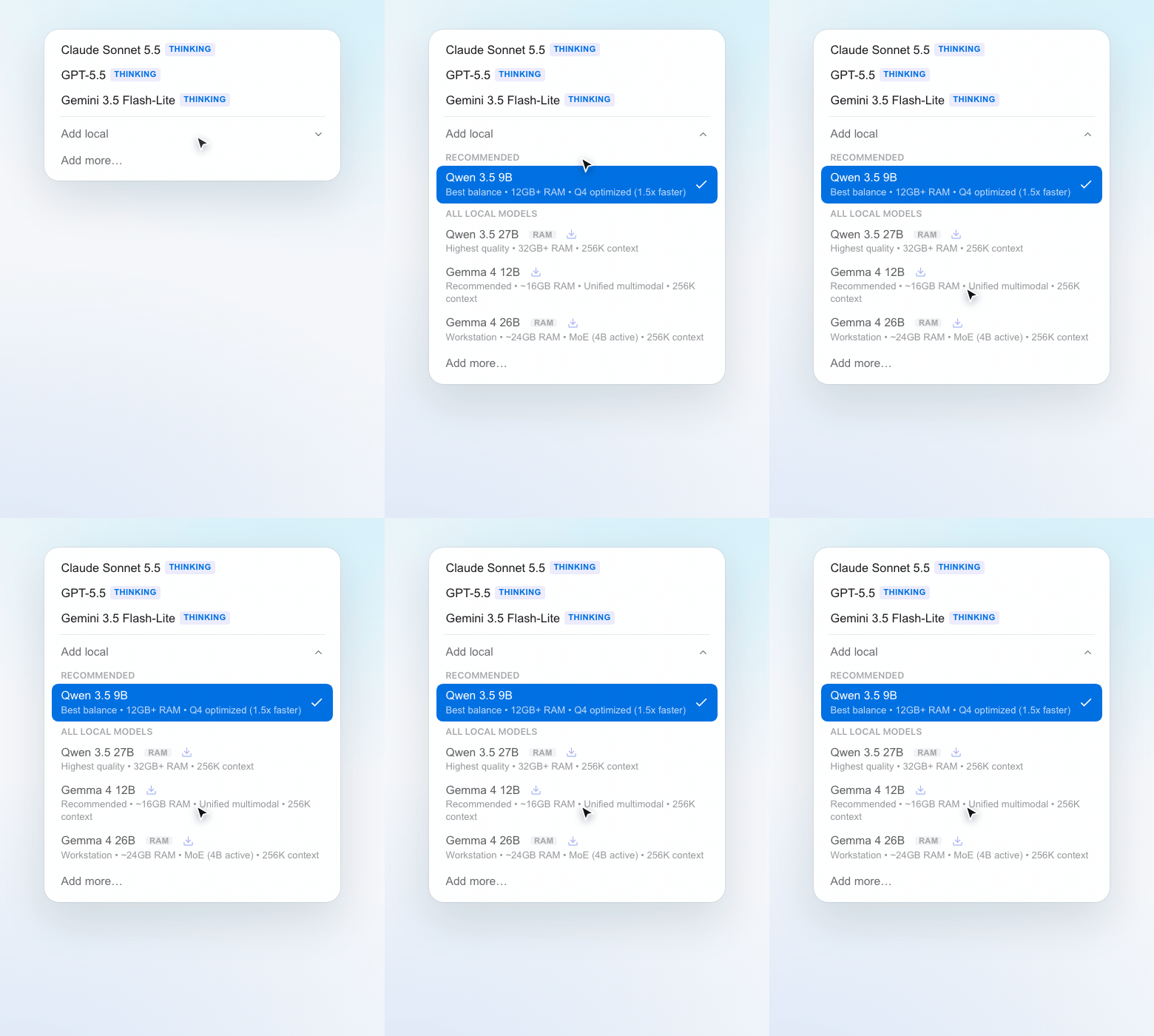
The trade-off is quality and speed. A local model on a laptop is slower than a cloud model, and it is weaker at long, multi-step builds. A good split is a cloud model to build an app and a local model for private, repeated tasks.
Decision four: local first, with the cloud when you want it
A purely local tool loses your work when you change laptops, and it cannot help a team. So Papr Work can sync your apps and their data to the cloud when you turn on Cloud Sync. Tasks that need your computer still run on your computer, and the results sync up so your teammates see them too.
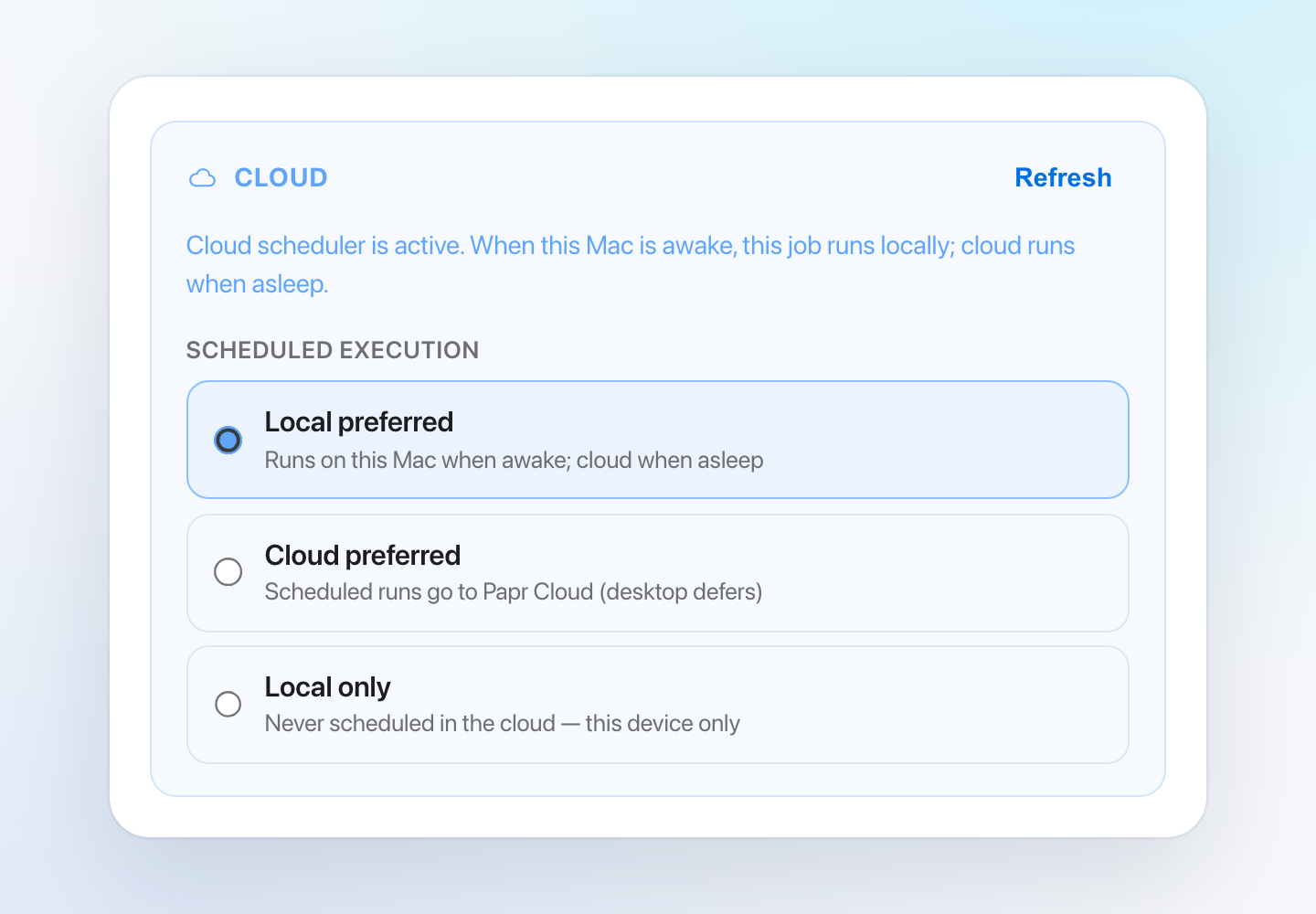
You also decide where each scheduled task runs. By default, a task runs on your computer while it is awake, and the cloud takes over while it sleeps. You can also keep a task on your device only or send it to the cloud every time.
A task that reads your Downloads folder stays local. A weekly report from your CRM can move to the cloud.
What you can do now
- Ask Pen for an app that reads, sorts or reports on files in any folder on your computer.
- Use sites that need your login, through a real Chrome window where you sign in yourself.
- Use a cloud model for heavy building, or a local Qwen or Gemma model through Ollama for private tasks.
- Run tasks on a schedule on your computer, in the cloud or both, and sync the results to your team.
What we learned
The hardest part of a local AI agent is not the model. It is access: files, logins, keys and schedules that already work on your computer and nowhere else. Putting the agent next to them removed more friction than any model upgrade we tried.
Papr Work runs on Mac, Windows and Linux. Read more on the Papr Work page.
Questions
What is a local AI agent?
A local AI agent is an AI assistant that runs on your own computer instead of only in a web browser. It can use your files, logins and schedules directly, so it can do real work without you uploading everything first.
Is there a local AI agent for Mac and Windows?
Yes. Papr Work runs on Mac, Windows and Linux. Its agent, Pen, builds small apps that run on your computer. Those apps can read local folders, use your browser logins and run on a schedule.
Can a local AI agent run with Ollama?
Yes. In Papr Work, the model picker has an Add local option with Qwen and Gemma models that run through Ollama. Papr Work recommends a model based on your computer's memory and downloads it the first time you use it.
Local AI agent vs cloud agent: which is better?
A cloud agent is easier to start with but cannot reach your files or logins without copies. A local agent works where your data already is. Papr Work runs the agent locally, with a cloud or local model for the thinking.
Does a local AI agent send my data to the cloud?
Only what you choose. With a cloud model, your prompt and the context the agent needs go to that model provider. With a local Ollama model, the model runs on your machine, and Cloud Sync is a setting you turn on.