

How to automate a weekly workflow with AI in Papr Work
AI workflow automation without a node canvas: describe a weekly task in one sentence, and Papr Work builds an app that runs it on a schedule.
Papr
AI workflow automation lets you hand a repeated task to software that runs on its own. In this guide you will automate one weekly task in Papr Work: a Search Console SEO report that lands every Monday. It takes about ten minutes.
AI workflow automation without a canvas
Tools like n8n and Zapier do this well with a canvas. You drag nodes onto a board, connect them, and map each field from one step to the next. That works, but you must think like the canvas. A small change can mean a new branch.
Papr Work starts from a sentence instead. You describe the task. Pen, the agent inside Papr Work, builds a small app that does the work on a schedule.
The app has a screen that shows the results. You don't need to open a log or a spreadsheet to check it.
You'll need: Papr Work (latest version) and a Google account with access to your site in Google Search Console.
1. Click New app
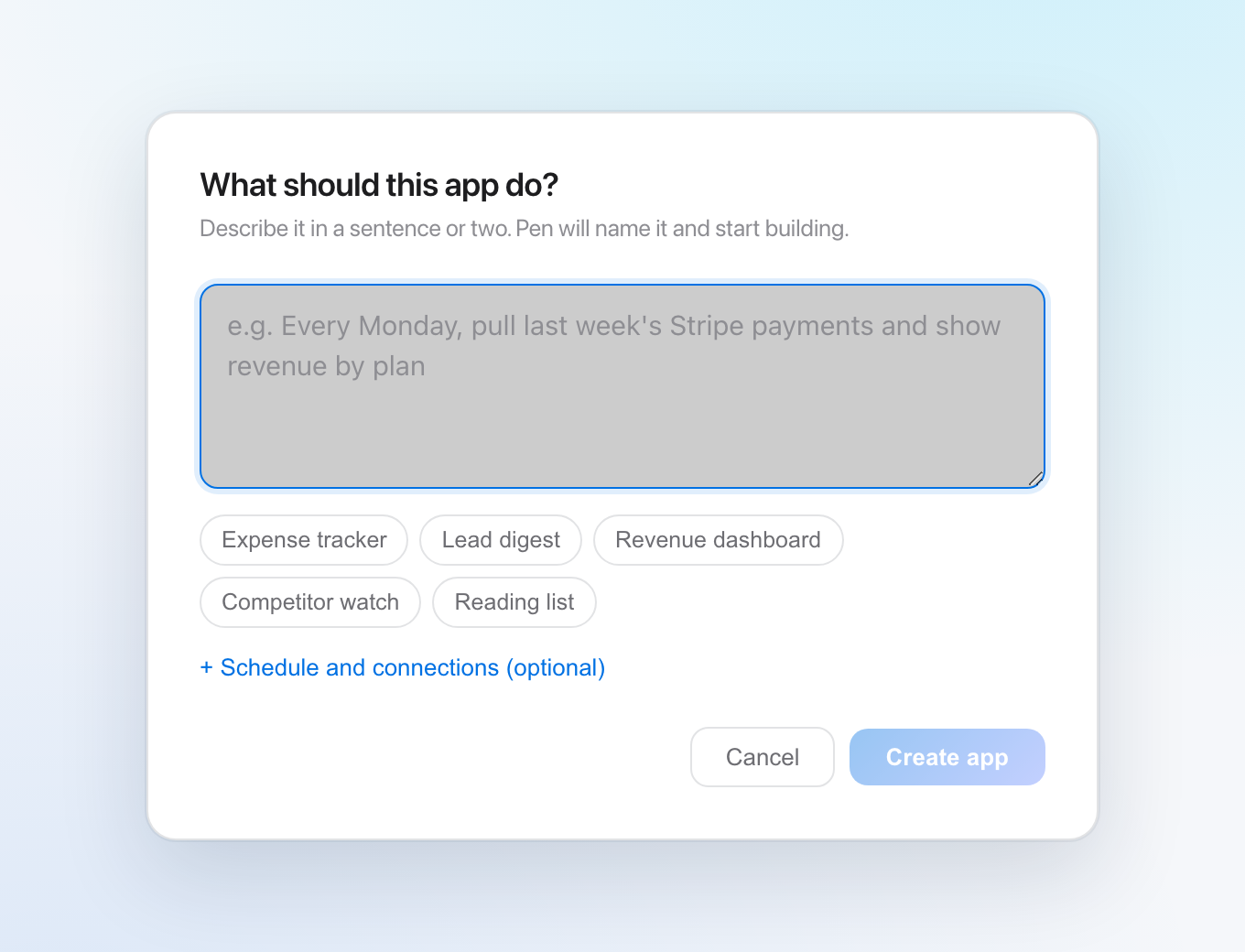
Go to Apps and click New app. A dialog asks one question: What should this app do?
2. Describe the weekly task
Type the task in plain words. Say when it runs, where the data comes from, and what you want to see.
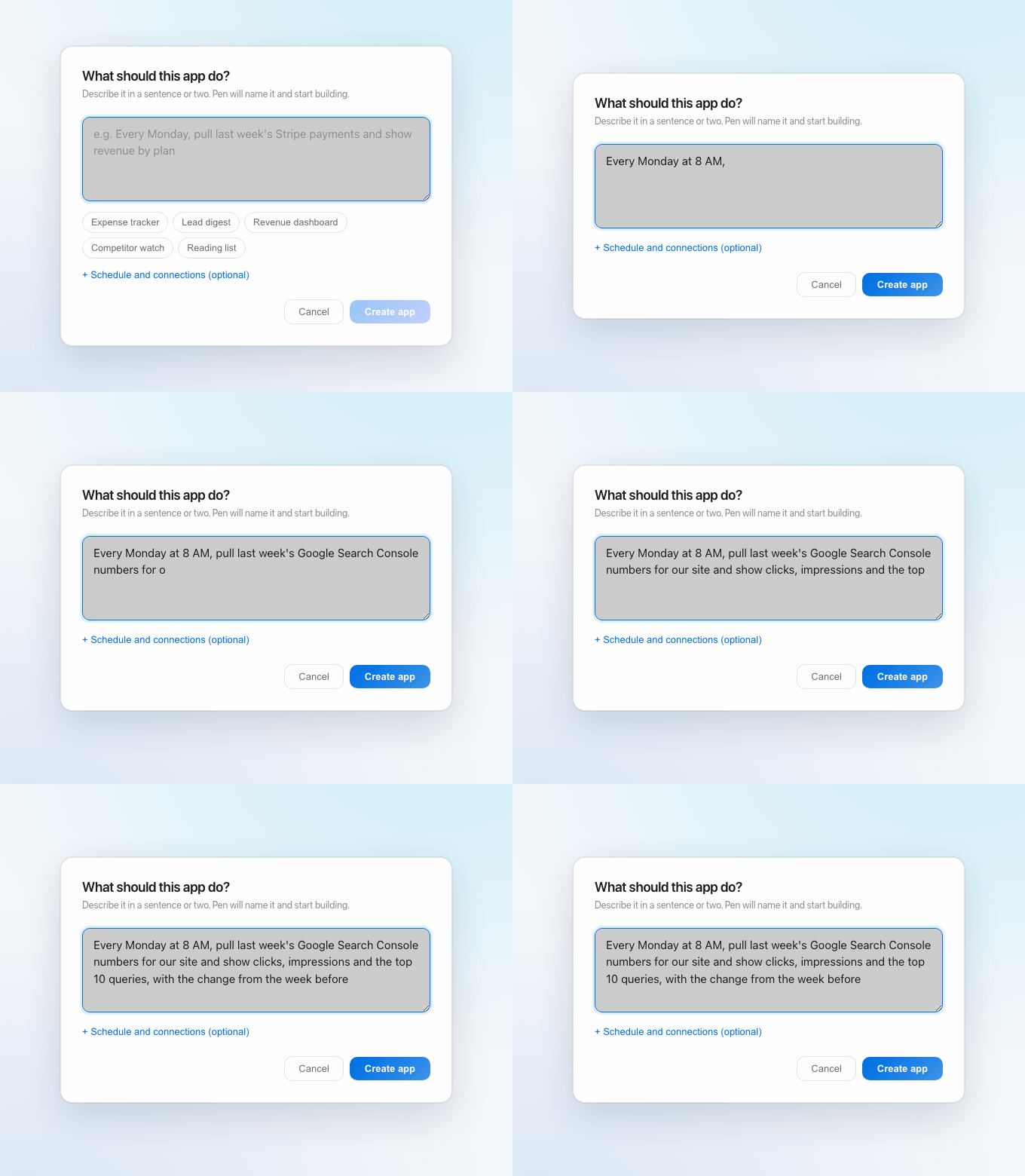
A good request names the day, the source and the result. "Every Monday, pull last week's Search Console numbers and show the top 10 queries" is enough.
3. Choose Weekly
Click + Schedule and connections (optional). Under Should it run on its own?, click Weekly.
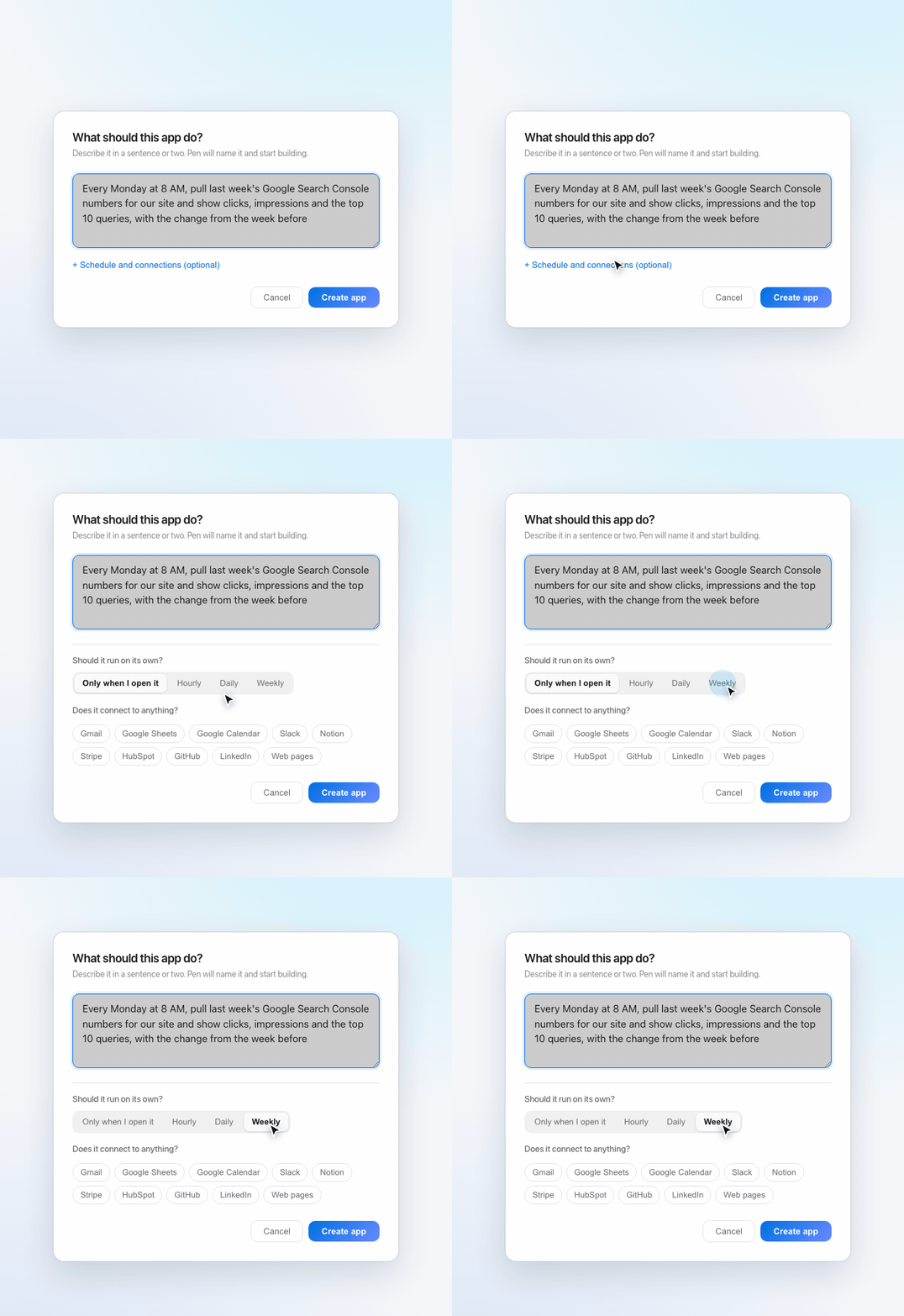
This tells Pen to set up a schedule, not a one-time run. You can also pick a connection, such as Google Sheets, if the report should go there too.
4. Click Create app
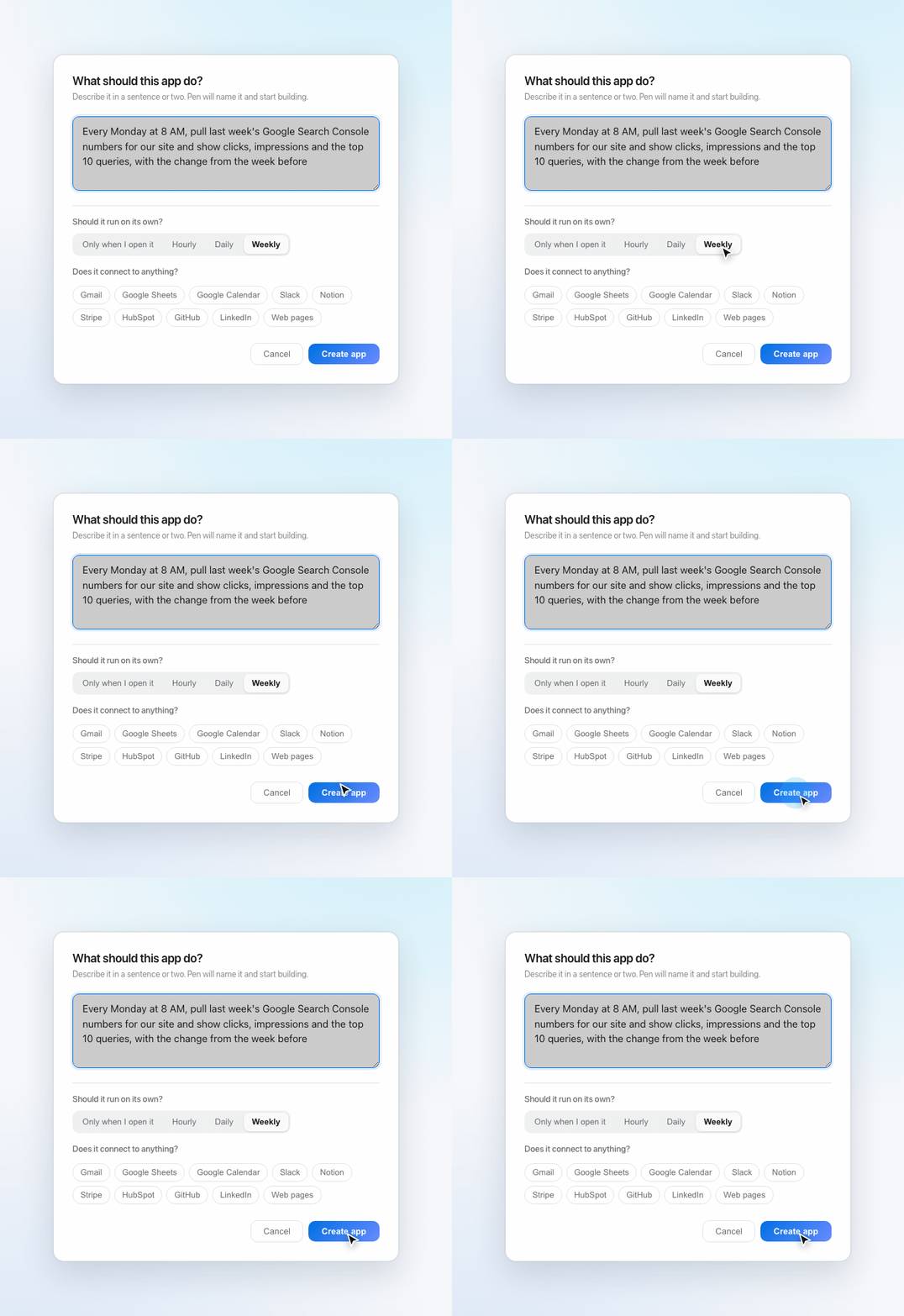
Click Create app. Papr Work opens a chat and sends your request to Pen.
5. Follow Pen's plan
Pen shows a plan and checks off each step as it works. Pen asks you to sign in to Google when it needs Search Console access.
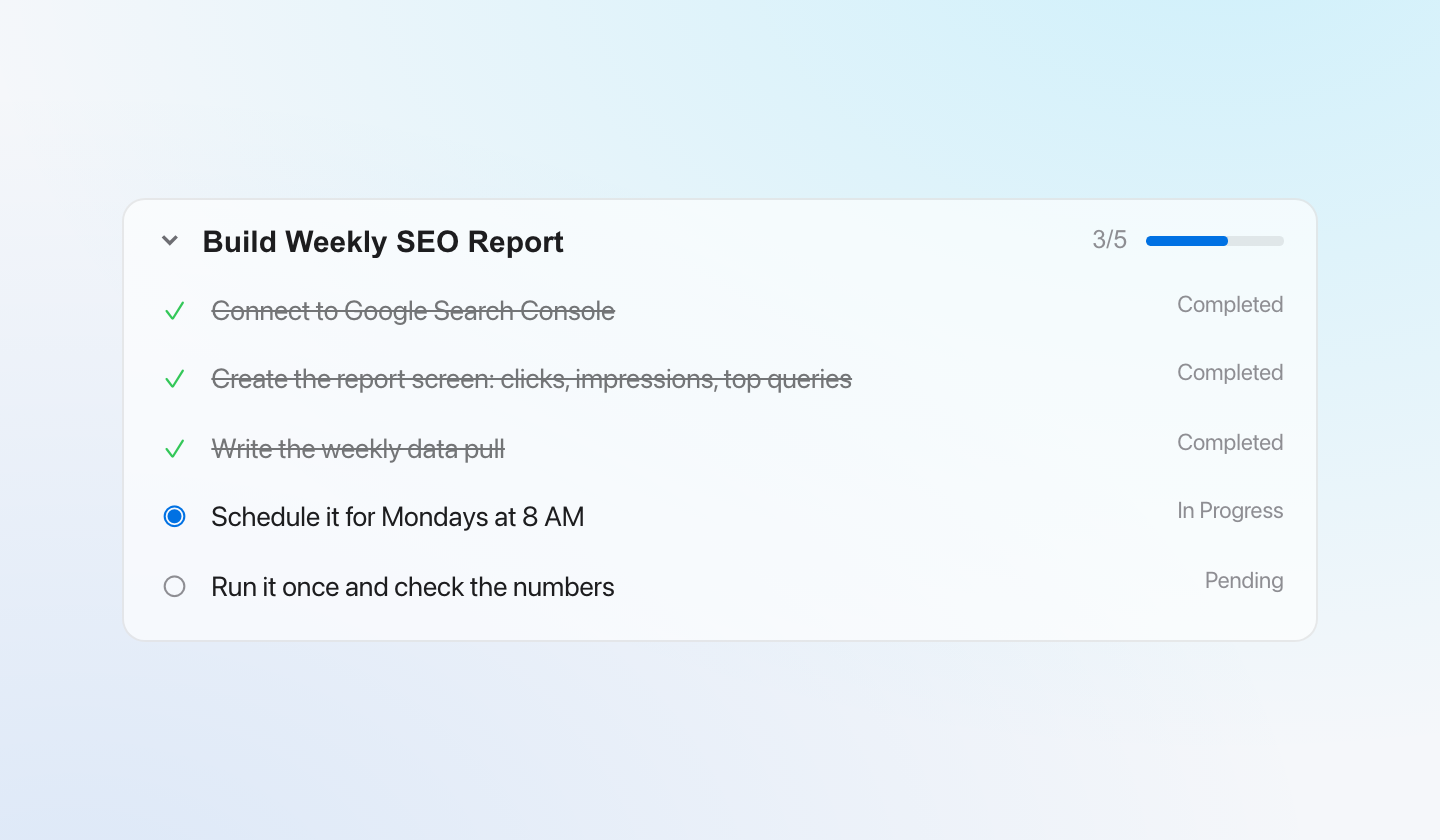
Pen runs the report once before it finishes. Check the numbers against Search Console. If something is wrong, tell Pen in the same chat.
6. Open the app on Monday
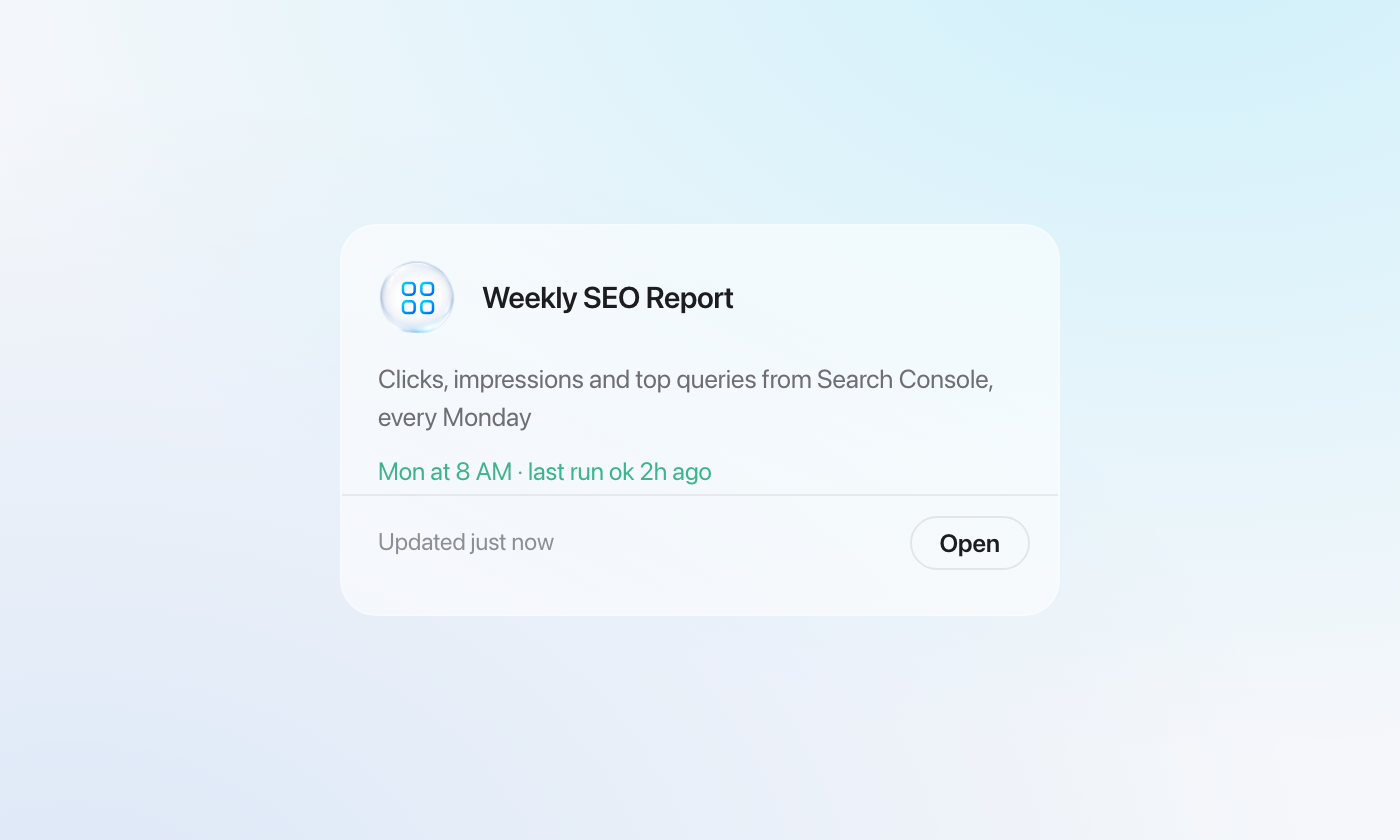
Open Apps. The card shows the schedule and the time of the last run.
7. Open the workflow canvas (optional)
Open Jobs, click Workflow, then click Weekly SEO Report in the list of apps. The canvas shows each step Pen built and how the steps hand off to the app.
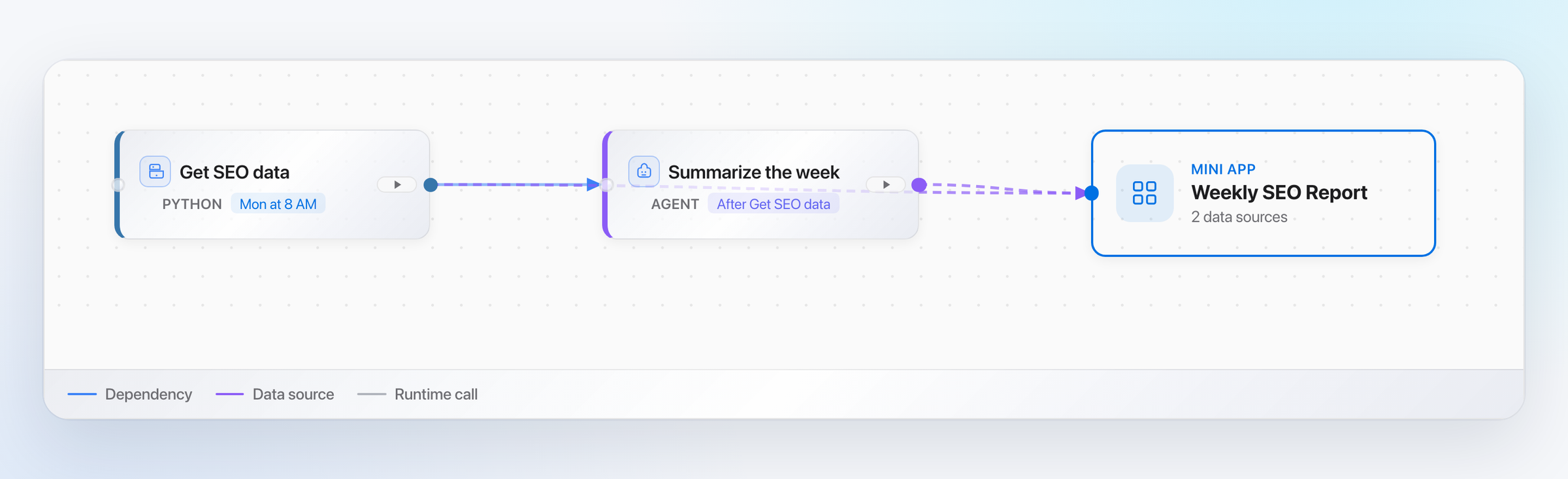
Here, Get SEO data runs every Monday at 8 AM. When it finishes, Summarize the week starts. Both steps send their results to the app. Click a step to see its runs, or press its play button to run it now.
Done
You now have a weekly SEO report that updates itself every Monday. Click Open to see clicks, impressions and the top queries. Next, try a second weekly task, such as a lead digest or a revenue summary. Read more on the Papr Work page.
Questions
What is AI workflow automation?
AI workflow automation uses an AI model to set up and run a repeated task for you. In Papr Work, you describe the task, and Pen builds an app that runs it on a schedule.
How is Papr Work different from n8n or Zapier?
n8n and Zapier use a canvas where you connect nodes by hand. In Papr Work, you describe the task in words. Pen builds the steps and a screen to see the results.
Is AI workflow automation good for beginners and small businesses?
Yes. You don't need to write code or draw a flow. If you can describe the task in a sentence, you can automate it in Papr Work.
Can I see the steps of an AI workflow?
Yes. The Workflow view in Jobs shows every step Pen built, the order they run in, and the app they feed. You never have to draw it, but you can always look.
What are good examples of weekly workflows to automate?
Common examples are an SEO report, a lead digest, a revenue summary and a competitor price check. Each one follows the same steps as this guide.